> ## Documentation Index
> Fetch the complete documentation index at: https://ade-ac1c6011-dependabot-github-actions-actions-cache-6.mintlify.site/llms.txt
> Use this file to discover all available pages before exploring further.
# Context and artifacts
> What's in a chat's context — the lane it starts in, attachments, the transcript, and how summaries carry work forward.
A chat's context is everything the agent can draw on: where it started, what you attach, and the running transcript of the session. The agent reads files directly from the lane's worktree on demand, so you don't paste source — point it at the right place and let it inspect.
## What the agent starts with
A new chat opens with its working context already set from the lane: the lane's **name, branch, and working directory** are injected so the agent knows which worktree it's in and where it can write. From there, its context is:
* Your prompt and any attachments you add.
* The lane's files, read on demand from the worktree.
* A linked Linear issue, when the lane already has one connected.
* The session transcript — the running record of the conversation.
## Attach the spec
When a task has acceptance criteria, attach the Linear issue from the composer so the agent works from the real spec instead of your paraphrase. ADE writes the issue into a per-session context file the agent can read, and — when the chat is on a lane — links the issue so it shows up in the next PR's "Linked Linear issues" block.
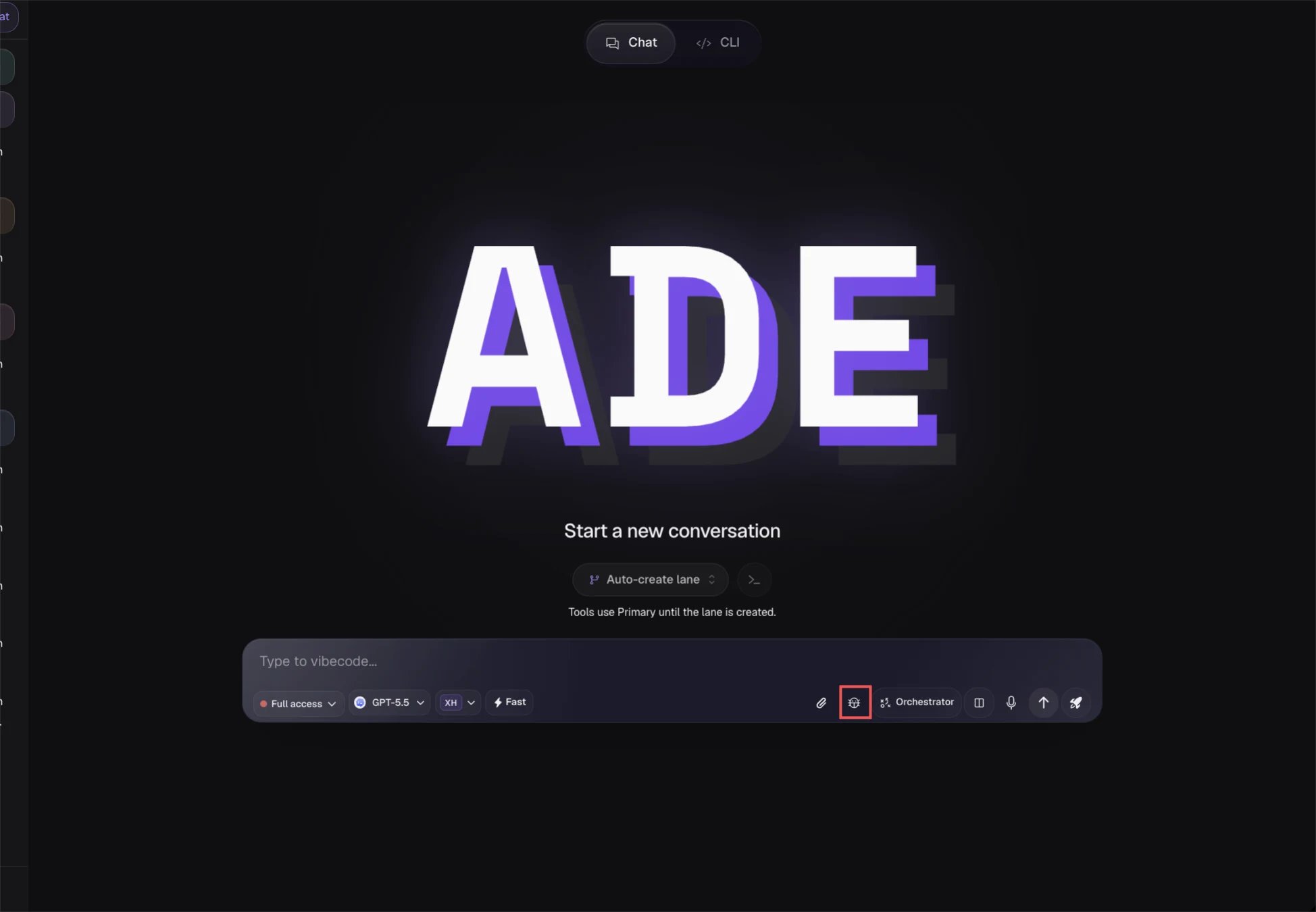 You can also attach images directly to a message — screenshots, mockups, or diagrams the agent should match or debug.
## The transcript and turns
Everything the agent draws — messages, reasoning, tool calls, commands, file changes, plans, and questions — is one stream of events that the UI renders as the transcript. Each exchange is a **turn**: your message, the agent's work, and a final marker that records the model, token usage, and (on a lane) a per-turn diff summary.
The transcript persists to disk, so a session survives an app restart. When you resume a chat, ADE rehydrates the provider's own session and injects a continuity summary, so the next turn picks up where you left off instead of starting cold.
## The context window
Long chats eventually fill the model's context window. Providers compact context automatically as it fills, and you'll see a marker in the transcript when they do. When a session gets long:
* Continue if the agent is still on track.
* Ask the agent to summarize the current state.
* Start a fresh session in the same lane, seeded with that summary.
* Re-attach the key logs or screenshots rather than relying on old messages.
Compaction and summaries are useful, but they are not exact memory. Restate any critical constraint before asking the agent to continue past a compaction.
## Recover old context
Use **History** to reopen past transcripts, inspect their tool calls, and recover proof or PR links from earlier sessions. A summary pulled from a finished session is the cleanest way to seed a new one in the same lane.
The full catalog of what a chat agent can do.
How a lane-scoped chat works, end to end.
You can also attach images directly to a message — screenshots, mockups, or diagrams the agent should match or debug.
## The transcript and turns
Everything the agent draws — messages, reasoning, tool calls, commands, file changes, plans, and questions — is one stream of events that the UI renders as the transcript. Each exchange is a **turn**: your message, the agent's work, and a final marker that records the model, token usage, and (on a lane) a per-turn diff summary.
The transcript persists to disk, so a session survives an app restart. When you resume a chat, ADE rehydrates the provider's own session and injects a continuity summary, so the next turn picks up where you left off instead of starting cold.
## The context window
Long chats eventually fill the model's context window. Providers compact context automatically as it fills, and you'll see a marker in the transcript when they do. When a session gets long:
* Continue if the agent is still on track.
* Ask the agent to summarize the current state.
* Start a fresh session in the same lane, seeded with that summary.
* Re-attach the key logs or screenshots rather than relying on old messages.
Compaction and summaries are useful, but they are not exact memory. Restate any critical constraint before asking the agent to continue past a compaction.
## Recover old context
Use **History** to reopen past transcripts, inspect their tool calls, and recover proof or PR links from earlier sessions. A summary pulled from a finished session is the cleanest way to seed a new one in the same lane.
The full catalog of what a chat agent can do.
How a lane-scoped chat works, end to end.