
The five agents
The models you can reach through ADE’s agents
These agents — plus OpenCode and OpenRouter routing — give you access to models from every major lab. Pick whichever fits the task.


Connect a provider
1
Open Settings → AI Connections
Choose the agent you want to connect.
2
Add credentials or sign in
Paste an API key, sign in with a subscription, configure a local endpoint, or authenticate the provider CLI.
3
Verify
ADE probes the provider CLI and lists its available models. A green status means it’s ready to start a session.
4
Choose defaults
Set your default chat model and any role-specific overrides for CTO, workers, or specific lanes.
Claude Code
Claude Code
Sign in with a Claude subscription or paste an Anthropic API key. ADE runs Claude through the bundled Claude Agent SDK, so the
claude CLI does not need to be installed separately. See Claude Code for lane context and permission modes.Codex
Codex
Sign in with your OpenAI account or provide an API key. Codex runs as a CLI-backed session and reaches OpenAI models.
Cursor
Cursor
Provide a Cursor API key (or set
CURSOR_API_KEY in the environment ADE launches from). ADE recognizes the key as valid auth and discovers Cursor’s available models at startup. See Cursor.Factory Droid
Factory Droid
Sign in with Factory or provide an API key. Droid runs as an agent provider and supports AGI mode for larger autonomous tasks.
OpenCode
OpenCode
Toggle OpenCode on; ADE downloads and manages the binary and local server. OpenCode is what powers API-backed and local-model chats — back it with an Anthropic or OpenAI key, an OpenRouter key for any model, or a local OpenAI-compatible endpoint such as LM Studio or Ollama. See OpenCode & Windsurf.
Permission presets
Providers expose different native permission models. ADE maps them into a small set of practical choices.
Set stricter modes for unfamiliar repositories. The full mapping lives in Permissions.
Cost and usage
Running several agents in parallel can spend quickly. Use cheaper models for routine follow-up and stronger models for planning, architecture, and hard debugging. The top-bar Usage popup shows live provider quota windows and lets you set a budget cap; Settings → Stats is the retrospective view of token, cost, and GitHub activity.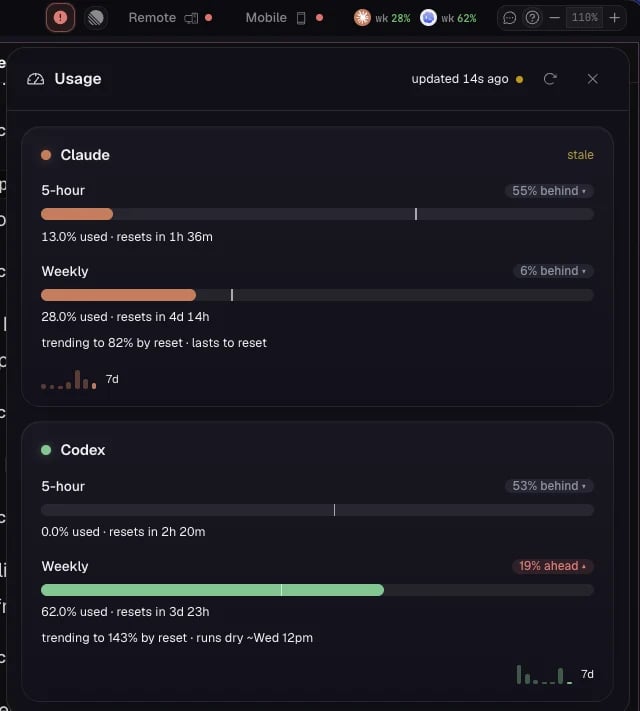
Live provider usage and quota windows in the top-bar Usage popup.
Permissions
Lane scope, provider modes, and how secrets are handled.
Settings
Every Settings section and a first-pass order.